Drill-down and drill-through let you move between summary views and granular detail in a single click without losing context.
Drill-down into any chart to break high-level metrics into their underlying detail. Drill-through to jump across chart panels and follow a data point wherever it leads.
Drill-Down
Drill-down functionality allows users to click on chart elements and navigate levels to uncover more detailed layers of data beneath summarized visuals. This feature helps users shift from a high-level overview to granular insights, making it easier to identify patterns and trends within datasets.
In Dashtera, drill-down is activated when the “Select Chart” button is used. An overlay prompts the user to select a chart from the dashboard. Once selected, the chart is highlighted, and its name appears in the menu, and it becomes the master chart, where users can create, organize, and manage different data levels. The level management interface allows users to rearrange the hierarchy or remove specific levels with ease.
Drill-Through
Drill-through allows users to interact with a chart and display related information in other charts or dashboard components. While drill-down focuses on navigating deeper within a single dataset, drill-through creates connections between different charts, enabling users to explore relevant data across multiple sources.
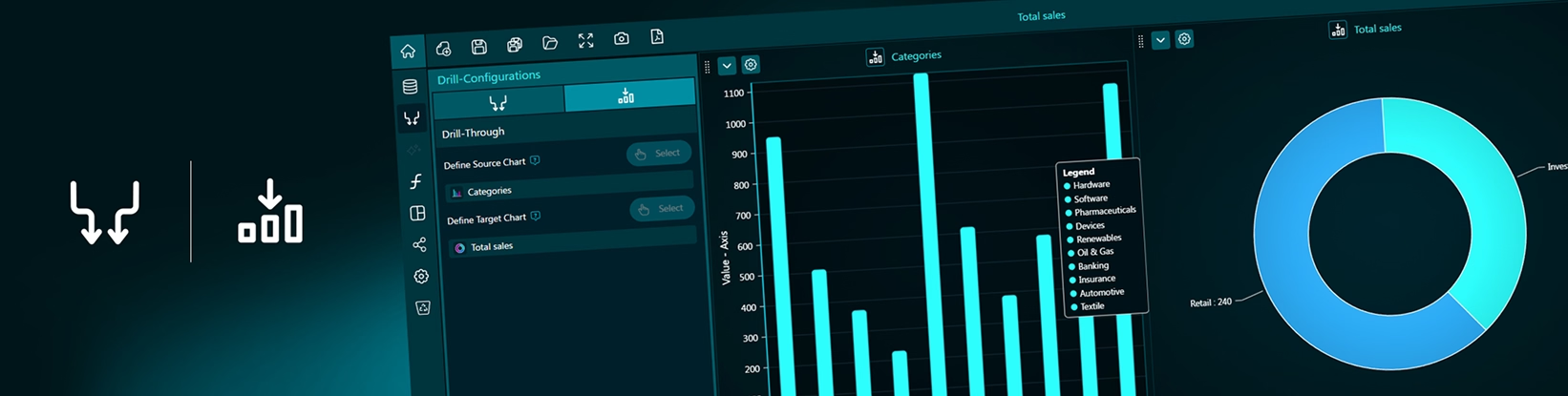
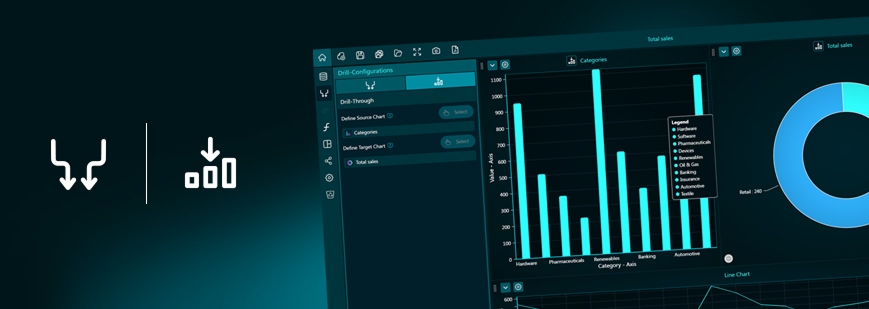
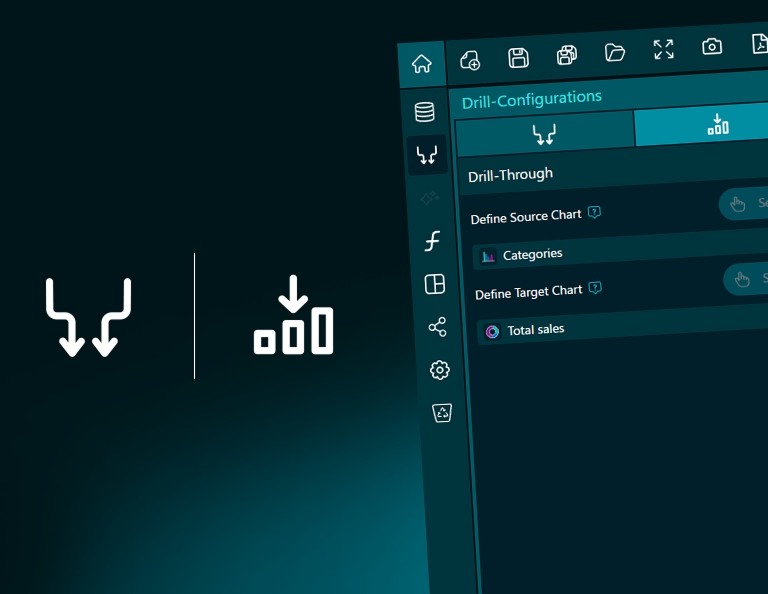
In Dashtera, the drill-through settings menu lets users configure and manage these interactions across charts within the same dashboard. Much like the drill-down setup, users start by selecting a master chart using the “Select Chart” button. Based on the master chart, users can then define which compatible target charts will respond to the drill-through action.
Additionally, users can specify the exact interaction type, such as click or hover, that will trigger the drill-through action, allowing for a customized and intuitive data exploration experience.
Bring your data to life with Dashtera
Start building your dashboards now and unleash your data insights.